Real-time input
Exercises can listen while you play, then grade the note you performed instead of only checking a button click.
LivePlay lets supported exercises hear the note you play or sing and respond immediately, so reading music connects directly to your instrument.
Try Play That Note
Exercises can listen while you play, then grade the note you performed instead of only checking a button click.
Use your microphone for singing or acoustic instruments when a MIDI keyboard is not available.
Connect a MIDI controller for fast, low-latency note detection during staff-reading drills.
Practice with mapped computer keys when you want a quick session without setting up hardware.
Whichever input you choose, the path is the same. LivePlay works out what you played and when you played it, then compares both against the music on screen.
A key press, a plucked string, or a sung tone arrives at your chosen input.
MIDI and keyboard report the pitch directly; microphone audio is analysed to find the pitch you produced.
The onset is timestamped against the exercise clock and matched to the expected note in the music.
Pitch and timing are scored together and the result appears on the note straight away.
Every exercise that supports LivePlay has an input bar at the bottom of the screen. Use the gear icon to open Audio Setup, choose your input, and check that your notes are arriving before you start.

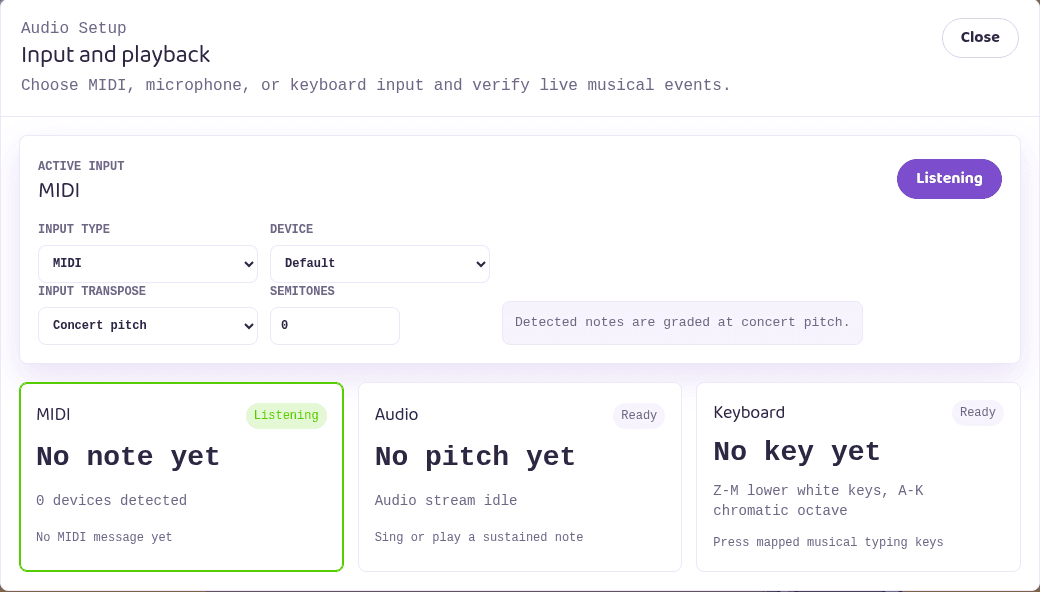
Pick whichever route fits your gear. You can change input at any time without losing your place in an exercise.
A MIDI controller sends the exact note number the moment you press a key, so there is nothing to guess. This is the most reliable option for chords, fast passages, and rhythm grading.
Web MIDI works in Chrome, Edge, and Opera. Safari and Firefox do not expose MIDI devices, so use microphone input there instead.
LivePlay analyses the microphone signal and works out which pitch you are producing, so guitar, brass, strings, woodwind, and singing all work without extra hardware.
Detection is monophonic: play one note at a time. Use headphones so backing playback is not picked up as your own performance.
An audio interface or USB microphone appears as just another input device. A direct signal is cleaner than a room microphone, which makes pitch detection steadier.
Transpose presets cover the common cases: guitar and bass at +12, Bb instruments at +9, F instruments at +7, and piccolo at -12.
Your typing keyboard becomes a one-octave instrument. This is the quickest way to try an exercise on a laptop with nothing plugged in and no microphone permission.
Keyboard input reports exact pitches like MIDI does, so it is graded just as strictly. It is ideal for note-reading and rhythm drills.
LivePlay does not just check whether you pressed something. It works out which pitch you produced and exactly when you produced it, so both your intonation and your rhythm are assessed.
For MIDI and computer keyboard input the note number arrives directly. For microphone input, LivePlay runs pitch detection on the incoming signal, tracks how close you landed in cents, and only accepts a note once the reading is stable, so a brief scoop into pitch is not judged as a wrong note.
Each detected note is stamped against the exercise clock, and note onsets are compared with where the note was written in the music. That is how LivePlay can tell an early note from a late one instead of only right from wrong.
Because the timing of every onset is known, LivePlay follows the rhythm you actually performed. Rhythm exercises can be graded on timing alone, and reading exercises can require the correct pitch at the correct moment.
Timing and pitch tolerances are adjustable, and latency compensation cancels the delay added by microphones and audio interfaces, so slow hardware does not read as bad playing.
Reconnect the USB cable, then reopen Audio Setup so the device list refreshes. For MIDI, use Chrome or Edge.
Raise Mic gain, move closer to the microphone, and play single sustained notes. Very quiet or very percussive attacks are hardest to detect.
Your instrument may be transposing. Set the matching Input transpose preset so what you play is graded as what is written.
Microphones and interfaces add delay. Latency compensation shifts your detected notes back into line with the beat.
Open a LivePlay exercise, choose your input, and play the note on screen.